顯示具有 linux 標籤的文章。 顯示所有文章

2026/8/31

tc (traffic control) in linux

tc(traffic control)是 Linux 裡用來做網路流量控制(QoS, Quality of Service)的工具。可針對網路卡,進行限速(rate limiting)、排程(traffic scheduling)、優先權控制(priority)、模擬網路狀況(延遲、丟包、抖動)、封包分類與整形(shaping)的網路封包控制。主要用途是用來模擬網際網路的封包狀況。

流量控制方式

  • shaping

    當流量被shaping限制後,它的傳輸速率就被控制在某個值以下。限制值可以遠小於有效頻寬,這樣可以平滑突發的資料流量,使網路更爲穩定。shaping(限制)只適用於向外的流量。shaping 只能用在 egress 對外的資料輸出。

  • scheduling

    通過調度封包的傳輸,可以在頻寬範圍內,按照優先等級分配頻寬。scheduling 只能用在 egress 對外的資料輸出。

  • policing

    shaping用於處理 egress 對外的流量,而 policing 用於處理 ingress 接收到的流量。

  • dropping

    如果流量超過某個設定的頻寬,就丟棄資料,可用在 egress 及 ingress。

主要元件

  1. qdisc (Queueing Discipline)

    佇列規則,決定封包排隊的送出規則。當kernel需要通過某個網絡port發送資料,它都需要按照爲這個port配置的qdisc排隊規則,把資料加入queue。然後kernel會儘可能地從qdisc裏面取出資料,交給網絡適配器驅動模塊。最簡單的qdisc是 pfifo,它不對進入的封包做任何的處理,採用先入先出的方式通過隊列。不過,它會暫存網絡接口短時間內無法處理的封包。

    常見的 qdisc:

    • pfifo_fast(預設)

    • htb(常用做限速)

    • fq_codel(改善 bufferbloat)

    • netem(模擬網路)

  2. class

    在 qdisc 底下建立不同流量分類,用來分配不同頻寬。不同的類別中可以包含更深入的QDisc(排隊規則),通過這些細分的QDisc還可以爲進入的隊列的封包排隊。通過設置各種類別封包的離隊次序,QDisc可以設定網路數據流量的優先等級。

  3. filter, policy 過濾器

    用來把封包分類到不同 class,決定它們按照何種QDisc進入隊列。分類的方法可以有多種,使用fileter(過濾器)就是其中之一。使用filter(過濾器)分類時,kernel會呼叫附屬於這個 class 的所有過濾器,直到回傳一個判決。如果沒有判決返回,就作進一步的處理,而處理方式和QDISC有關。filter(過濾器)是放在QDisc內部。

指令

tc [OPTIONS] OBJECT COMMAND

常見 OBJECT:

  • qdisc

  • class

  • filter

指令內可使用的資料單位

  • 頻寬或流量單位

    kbps
    mbps
    kbit
    mbit
    bps
  • 資料單位

    kb
    mb
    mbit
    kbit
    b
  • 時間

    s/sec/secs
    ms/msec/msecs
    us/usec/usecs

options

-s, -stats, -statistics: output more statistics about packet usage.
-d, -details: output more detailed information about rates and cell sizes.
-r, -raw: output raw hex values for handles.
-p, -pretty: decode filter offset and mask values to equivalent filter commands based on TCP/IP.
-iec: print rates in IEC units (ie. 1K = 1024).

Examples

tc 通常是控制 egress 的流量

查看設定

tc -s qdisc show dev eth0
tc class show dev eth0
tc filter show dev eth0
# tc -s qdisc show dev enp1s0
qdisc mq 0: root
 Sent 220264 bytes 431 pkt (dropped 0, overlimits 0 requeues 2)
 backlog 0b 0p requeues 2
qdisc fq_codel 0: parent :4 limit 10240p flows 1024 quantum 1514 target 5ms interval 100ms memory_limit 32Mb ecn drop_batch 64
 Sent 20103 bytes 107 pkt (dropped 0, overlimits 0 requeues 0)
 backlog 0b 0p requeues 0
  maxpacket 0 drop_overlimit 0 new_flow_count 0 ecn_mark 0
  new_flows_len 0 old_flows_len 0
qdisc fq_codel 0: parent :3 limit 10240p flows 1024 quantum 1514 target 5ms interval 100ms memory_limit 32Mb ecn drop_batch 64
 Sent 43974 bytes 148 pkt (dropped 0, overlimits 0 requeues 0)
 backlog 0b 0p requeues 0
  maxpacket 0 drop_overlimit 0 new_flow_count 0 ecn_mark 0
  new_flows_len 0 old_flows_len 0
qdisc fq_codel 0: parent :2 limit 10240p flows 1024 quantum 1514 target 5ms interval 100ms memory_limit 32Mb ecn drop_batch 64
 Sent 146267 bytes 124 pkt (dropped 0, overlimits 0 requeues 2)
 backlog 0b 0p requeues 2
  maxpacket 8925 drop_overlimit 0 new_flow_count 1 ecn_mark 0
  new_flows_len 0 old_flows_len 0
qdisc fq_codel 0: parent :1 limit 10240p flows 1024 quantum 1514 target 5ms interval 100ms memory_limit 32Mb ecn drop_batch 64
 Sent 9920 bytes 52 pkt (dropped 0, overlimits 0 requeues 0)
 backlog 0b 0p requeues 0
  maxpacket 0 drop_overlimit 0 new_flow_count 0 ecn_mark 0
  new_flows_len 0 old_flows_len 0
# tc -d qdisc show dev enp1s0
qdisc mq 0: root
qdisc fq_codel 0: parent :4 limit 10240p flows 1024 quantum 1514 target 5ms interval 100ms memory_limit 32Mb ecn drop_batch 64
qdisc fq_codel 0: parent :3 limit 10240p flows 1024 quantum 1514 target 5ms interval 100ms memory_limit 32Mb ecn drop_batch 64
qdisc fq_codel 0: parent :2 limit 10240p flows 1024 quantum 1514 target 5ms interval 100ms memory_limit 32Mb ecn drop_batch 64
qdisc fq_codel 0: parent :1 limit 10240p flows 1024 quantum 1514 target 5ms interval 100ms memory_limit 32Mb ecn drop_batch 64
  • qdisc mq 0: root

    根節點 mq : multi-queue

    代表你的硬體網路卡有多個傳輸佇列(在這個例子中是 4 個,分別對應 parent :1 到 :4)。通常發生在多核心 CPU 的伺服器上,系統會將網路流量分散到不同的 CPU 核心處理,以提升效能

  • fq_codel (Fair Queuing Controlled Delay)

    這是目前 Linux 系統非常推薦的排隊規則,它由兩個部分組成

    • FQ (Fair Queuing):確保每個「連線」(Flow)都能公平分配頻寬。例如,即使有人在下載大檔案,你的網頁瀏覽或視訊通話依然能順暢通過。

    • CoDel (Controlled Delay):這是一個智慧演算法,當它發現緩衝區(Buffer)塞車太久時,會主動丟棄封包或標記 ECN,強制降低延遲,解決「緩衝區膨脹」問題。

  • 以其中一個 fq_codel 為例:

    • limit 10240p: 佇列中最多可以存放 10,240 個封包。

    • flows 1024: 它最多可以同時追蹤並隔離 1024 個不同的連線。

    • target 5ms / interval 100ms: 這是 CoDel 的核心參數。它會嘗試將延遲控制在 5ms 以內;如果延遲超過這個數值持續 100ms,它就會開始干預流量。

    • ecn: 支援顯式擁塞通知。當網路塞車時,它會通知發送端減速,而不是直接丟棄封包。

  • -s 統計

    Sent 146267 bytes 124 pkt (dropped 0, overlimits 0 requeues 2)

    • Sent: 該佇列目前傳送的資料量與封包數。

    • dropped 0: 這是一個好現象。 代表目前沒有封包因為塞車而被強制丟棄。

    • requeues 2: 封包重新排隊的次數。通常發生在硬體驅動程式暫時無法處理封包時(例如網路卡發送視窗滿了),這在正常運作下是偶爾會發生的。

    • new_flow_count 1: 代表自從統計開始以來,有一個「新連線」被偵測到。fq_codel 會優先處理新連線(互動式流量),以保證反應速度。

刪除設定

清除所有設定

tc qdisc del dev eth0 root

備份/還原完整設定

# 備份
tc -dump qdisc show dev eth0 > tc-backup.txt
tc -dump class show dev eth0 >> tc-backup.txt
tc -dump filter show dev eth0 >> tc-backup.txt

# 還原前先清空
tc qdisc del dev eth0 root
tc qdisc del dev eth0 ingress
tc -batch tc-backup.txt

完整備份所有網卡

tc -dump qdisc show > tc-all.txt
tc -dump class show >> tc-all.txt
tc -dump filter show >> tc-all.txt

# 還原
tc -batch tc-all.txt

限制整個網卡頻寬

限制 eth0 最大 1Mbps

tc qdisc add dev eth0 root tbf rate 1mbit burst 32kbit latency 400ms
  • tbf = Token Bucket Filter(簡單限速)

  • rate = 頻寬

  • burst = 突發流量

  • latency = 最大延遲

使用 HTB 做分流

# 建立 root qdisc
tc qdisc add dev eth0 root handle 1: htb default 30

# 建立 class 做頻寬分配
tc class add dev eth0 parent 1: classid 1:1 htb rate 10mbit
tc class add dev eth0 parent 1:1 classid 1:10 htb rate 5mbit
tc class add dev eth0 parent 1:1 classid 1:20 htb rate 2mbit
1: (root)
 └── 1:1 (10mbit)
      ├── 1:10 (5mbit)
      └── 1:20 (2mbit)

依 IP 分流

ex

192.168.1.100 → 5Mbps
其他 → 2Mbps
tc filter add dev eth0 protocol ip parent 1:0 prio 1 u32 \
match ip dst 192.168.1.100 flowid 1:10

模擬網路延遲

增加 100ms 延遲

tc qdisc add dev eth0 root netem delay 100ms

模擬丟包

10% 封包丟失

tc qdisc add dev eth0 root netem loss 10%

延遲 + 抖動 + 丟包

tc qdisc add dev eth0 root netem delay 100ms 20ms loss 5%
  • 100ms = 基本延遲

  • 20ms = 抖動(jitter)

  • loss 5% = 丟包

控制 ingress

tc qdisc add dev eth0 handle ffff: ingress

ingress shaping ifb

tc 原生只能控制 egress(送出流量) ,要控制 ingress(進來的流量),就要「轉送」到 ifb 再做 shaping

eth0 (ingress)
   ↓ redirect
ifb0 (egress)
   ↓ tc 控制

限制下載速度(ingress 10Mbps)

# 載入 ifb 模組
modprobe ifb

# 指定數量
modprobe ifb numifbs=1

# 啟用 ifb0
ip link add ifb0 type ifb
ip link set dev ifb0 up

# 在 eth0 加 ingress qdisc
tc qdisc add dev eth0 handle ffff: ingress

# 把 ingress 流量導到 ifb0
# mirred = mirror/redirect
tc filter add dev eth0 parent ffff: protocol ip u32 \
match u32 0 0 action mirred egress redirect dev ifb0

# 在 ifb0 上做限速
tc qdisc add dev ifb0 root tbf rate 10mbit burst 32k latency 400ms

# show
tc -s qdisc show dev ifb0

clear

tc qdisc del dev eth0 ingress
tc qdisc del dev ifb0 root
ip link delete ifb0

不同 IP 不同下載速度

ex

192.168.1.100 → 5 Mbps
其他 → 2 Mbps

用 HTB

tc qdisc add dev ifb0 root handle 1: htb default 20

tc class add dev ifb0 parent 1: classid 1:1 htb rate 10mbit

tc class add dev ifb0 parent 1:1 classid 1:10 htb rate 5mbit
tc class add dev ifb0 parent 1:1 classid 1:20 htb rate 2mbit

# filter 分流
# ingress → ifb 後.  source IP 才是外部來源 IP
tc filter add dev ifb0 protocol ip parent 1: prio 1 u32 \
match ip src 192.168.1.100 flowid 1:10

note: ingress 只能有一個 qdisc

References

程式扎記: [Linux 文章收集] TC 入門 (traffic control)

TC (Traffic Control) - HackMD

2026/8/10

RPi 設定使用 camera

camera

更新套件

sudo apt update
sudo apt install ffmpeg v4l-utils libcamera-apps -y

使用一般的 web camera

用這個指令列出所有 devices,通常外接的 camera 會在 /dev/video0

v4l2-ctl --list-devices

用這個指令查詢 video0 支援的 video 格式

v4l2-ctl --device=/dev/video0 --list-formats-ext

如果有 RPi 官方提供的 camera 模組。

安裝時

  1. 找到 CSI 相機接口,將拉起連接埠的黑色或白色塑膠卡榫

  2. 有藍色膠帶的一面要朝向 HDMI/USB 埠,金屬接點面朝向 CSI 接口內部

  3. 插入排線後,將卡榫壓回固定

測試拍照

如果是用 web camera,可直接用 ffmpeg 拍照。

ffmpeg -f v4l2 -video_size 640x480 -i /dev/video0 -frames:v 1 test.jpg

如果是 RPI camera 模組,用 ffmpeg 會產生 error,要改用 rpi-cam-* 指令

rpicam-jpeg -o test.jpg

# video
rpicam-vid -t 5000 -o test.h264

將 RPi 改為 HotSpot AP

# 將 wifi 改為 hotspot AP
sudo nmcli device wifi hotspot ssid crpi4 password wifipassword ifname wlan0

# 設定可自動連線
sudo nmcli connection modify Hotspot connection.autoconnect yes

# 修改為 2.4G
sudo nmcli connection modify Hotspot 802-11-wireless.band bg

# 設定可從 wifi 轉發到 ethernet
echo "net.ipv4.ip_forward=1" | sudo tee -a /etc/sysctl.conf
sudo sysctl -p

音效卡

使用 UPTech 161 USB 音效卡測試

$ lsusb
Bus 001 Device 001: ID 1d6b:0002 Linux Foundation 2.0 root hub
Bus 001 Device 002: ID 2109:3431 VIA Labs, Inc. Hub
Bus 001 Device 004: ID 0d8c:0014 C-Media Electronics, Inc. Audio Adapter (Unitek Y-247A)
Bus 002 Device 001: ID 1d6b:0003 Linux Foundation 3.0 root hub

要出現 C-Media 的那一行

$ aplay -l
**** List of PLAYBACK Hardware Devices ****
card 0: Headphones [bcm2835 Headphones], device 0: bcm2835 Headphones [bcm2835 Headphones]
  Subdevices: 8/8
  Subdevice #0: subdevice #0
  Subdevice #1: subdevice #1
  Subdevice #2: subdevice #2
  Subdevice #3: subdevice #3
  Subdevice #4: subdevice #4
  Subdevice #5: subdevice #5
  Subdevice #6: subdevice #6
  Subdevice #7: subdevice #7
card 1: vc4hdmi0 [vc4-hdmi-0], device 0: MAI PCM i2s-hifi-0 [MAI PCM i2s-hifi-0]
  Subdevices: 1/1
  Subdevice #0: subdevice #0
card 2: vc4hdmi1 [vc4-hdmi-1], device 0: MAI PCM i2s-hifi-0 [MAI PCM i2s-hifi-0]
  Subdevices: 1/1
  Subdevice #0: subdevice #0
card 3: Device [USB Audio Device], device 0: USB Audio [USB Audio]
  Subdevices: 1/1
  Subdevice #0: subdevice #0

有出現 card 3: USB Audio

設定 USB 音效卡為預設輸出

sudo raspi-config
  • 進入 System Options -> Audio。

  • 選擇你的 USB Audio Device,然後按下 Finish

調整音量

alsamixer

按下 F6 鍵,選擇你的 USB Sound Device

使用方向鍵將 Speaker 或 Mic 的音量推高

 $ arecord -l
**** List of CAPTURE Hardware Devices ****
card 3: Device [USB Audio Device], device 0: USB Audio [USB Audio]
  Subdevices: 1/1
  Subdevice #0: subdevice #0

card 3 和 device 0 組合起來就是硬體代號 hw:3,0

讓系統預設就抓這張卡,我們建立一個 ALSA 設定檔

sudo nano /etc/asound.conf

defaults.ctl.card 3
defaults.pcm.card 3
defaults.timer.card 3

測試

$ aplay -D hw:3,0 /usr/share/sounds/alsa/Front_Center.wav
Playing WAVE '/usr/share/sounds/alsa/Front_Center.wav' : Signed 16 bit Little Endian, Rate 48000 Hz, Mono
aplay: set_params:1398: Channels count non available

因為這張 USB 音效卡(或是 ALSA 驅動)在處理 Mono(單聲道) 檔案時,無法直接對應到硬體的 Stereo(雙聲道) 輸出。

改為以下指令

$ aplay -D plughw:3,0 /usr/share/sounds/alsa/Front_Center.wav
Playing WAVE '/usr/share/sounds/alsa/Front_Center.wav' : Signed 16 bit Little Endian, Rate 48000 Hz, Mono

測試錄音 10秒

arecord -D plughw:3,0 -d 10 -f cd -vv test_mic.wav

設定為 0dB

amixer -c 3 sset Mic 0dB

錄影+錄音

透過 rpicam-vid 錄影後,轉發給 ffmpeg 增加錄音

  • -f segment: 自動分割

  • -segment_time 600: 每 600 秒 (10分鐘) 分割一次

  • -reset_timestamps 1: 每個片段的時間戳從 0 開始,避免播放器錯誤

  • -strftime 1: 允許檔名使用時間格式

rpicam-vid -t 0 --inline --width 1920 --height 1080 --framerate 30 \
    --bitrate 8000000 --profile high \
    --saturation 1.4 --contrast 1.2 --sharpness 1.5 --awb auto \
    -o - 2>/dev/null | \
ffmpeg -y -r 30 -i pipe:0 \
    -f alsa -i plughw:3,0 \
    -c:v copy -c:a aac -ac 1 \
    -af "volume=2.0" \
    -f segment -segment_time 300 -segment_format mp4 \
    /home/charley/Videos/test_%04d.mp4 > /dev/null 2>&1

錄影 mp4 格式,有可能會因為中途中斷而打不開檔案。改使用 ts 格式。iMovie 可讀取 mp4 及 ts 格式

rpicam-vid -t 0 --inline --width 1920 --height 1080 --framerate 30 \
    --bitrate 8000000 --profile high \
    --saturation 1.4 --contrast 1.2 --sharpness 1.5 --awb auto \
    -o - 2>/dev/null | \
ffmpeg -y -r 30 -i pipe:0 \
    -f alsa -i plughw:3,0 \
    -c:v copy -c:a aac -ac 1 \
    -af "volume=2.0" \
    -f segment -segment_time 300 -segment_format mpegts \
    /home/charley/Videos/test_%04d.ts > /dev/null 2>&1

調整畫質

AWB 模式

如果你覺得自動模式不準,可以嘗試適合的模式:

  • --awb auto: 預設自動。

  • --awb indoor: 適合一般室內燈光。

  • --awb tungsten: 適合黃光燈泡環境(這會強力補償藍色,消除黃感)。

  • --awb fluorescent: 適合辦公室日光燈環境。

或是使用 manual mode

  • --awbgains R,B: 第一個數字是紅增益,第二個是藍增益。

  • 調低第一個數 (紅) 或 調高第二個數 (藍) 可以讓畫面變冷色調。

rpicam-jpeg --width 1920 --height 1080 --awbgains 1.2,1.8 -o test_cool.jpg

2026/8/3

pdf OCR

當遇到 pdf 複製文字是無法辨識的內容時,這是 pdf 保護文字資料的方法,可透過轉成圖片,再做 OCR 解決。

安裝軟體

# ghostscript. pdf -> 圖片
dnf install ghostscript

# 圖片
dnf install ImageMagick

# Tesseract OCR(圖片 → 文字)
sudo dnf install tesseract
tesseract --list-langs
# 預設已安裝英文
#sudo dnf install tesseract-langpack-chi-sim  # 簡體中文,視需求
#sudo dnf install tesseract-langpack-chi-tra  # 繁體中文

# 合併 pdf
dnf install poppler-utils

轉成圖片

gs -dNOPAUSE -dBATCH -sDEVICE=png16m -r300 -sOutputFile=page_%03d.png input.pdf

ocr 中文

tesseract page_001.png output_001 -l chi-tra pdf

ocr 英文

tesseract page_001.png output_001 -l eng pdf

--psdm 參數,目前測試調整後, table 換行還是有問題

--psm 常用模式:

  • 3 → 全頁自動檢測文本

  • 6 → 單塊文本

  • 11 → 密集文字或多欄

tesseract page_001.png output_001 -l eng --psm 3 pdf

多頁

for f in page_*.png; do
  base=$(basename $f .png)
  tesseract "$f" "${base}_ocr" -l eng pdf
done

合併

pdfunite page_*_ocr.pdf final_output.pdf

壓縮

gs -sDEVICE=pdfwrite -dPDFSETTINGS=/ebook -o compressed.pdf final_output.pdf

2026/7/13

rclone

rclone

rclone 等同雲端版 rsync,可以同步 / 備份資料到雲端,在不同雲端之間拷資料,把雲端 掛載成資料夾mount。支援 Google Drive、OneDrive、Dropbox、S3、Backblaze B2、FTP、SFTP、WebDAV。

ftp

rclone config

NOTICE: Config file "/root/.config/rclone/rclone.conf" not found - using defaults
No remotes found, make a new one?
n) New remote
s) Set configuration password
q) Quit config

設定過程

n/s/q> n

Enter name for new remote.
name> ftp1

Option Storage.
Type of storage to configure.
Choose a number from below, or type in your own value.
 1 / 1Fichier
   \ (fichier)
 2 / Akamai NetStorage
   \ (netstorage)
 3 / Alias for an existing remote
   \ (alias)
 4 / Amazon S3 Compliant Storage Providers including AWS, Alibaba, ArvanCloud, Ceph, ChinaMobile, Cloudflare, Cubbit, DigitalOcean, Dreamhost, Exaba, FileLu, FlashBlade, GCS, Hetzner, HuaweiOBS, IBMCOS, IDrive, Intercolo, IONOS, Leviia, Liara, Linode, LyveCloud, Magalu, Mega, Minio, Netease, Outscale, OVHcloud, Petabox, Qiniu, Rabata, RackCorp, Rclone, Scaleway, SeaweedFS, Selectel, Servercore, SpectraLogic, StackPath, Storj, Synology, TencentCOS, Wasabi, Zata, Other
   \ (s3)
 5 / Backblaze B2
   \ (b2)
 6 / Better checksums for other remotes
   \ (hasher)
 7 / Box
   \ (box)
 8 / Cache a remote
   \ (cache)
 9 / Citrix Sharefile
   \ (sharefile)
10 / Cloudinary
   \ (cloudinary)
11 / Combine several remotes into one
   \ (combine)
12 / Compress a remote
   \ (compress)
13 / DOI datasets
   \ (doi)
14 / Dropbox
   \ (dropbox)
15 / Encrypt/Decrypt a remote
   \ (crypt)
16 / Enterprise File Fabric
   \ (filefabric)
17 / FTP
   \ (ftp)
18 / FileLu Cloud Storage
   \ (filelu)
19 / Files.com
   \ (filescom)
20 / Gofile
   \ (gofile)
21 / Google Cloud Storage (this is not Google Drive)
   \ (google cloud storage)
22 / Google Drive
   \ (drive)
23 / Google Photos
   \ (google photos)
24 / HTTP
   \ (http)
25 / Hadoop distributed file system
   \ (hdfs)
26 / HiDrive
   \ (hidrive)
27 / ImageKit.io
   \ (imagekit)
28 / In memory object storage system.
   \ (memory)
29 / Internet Archive
   \ (internetarchive)
30 / Jottacloud
   \ (jottacloud)
31 / Koofr, Digi Storage and other Koofr-compatible storage providers
   \ (koofr)
32 / Linkbox
   \ (linkbox)
33 / Local Disk
   \ (local)
34 / Mail.ru Cloud
   \ (mailru)
35 / Mega
   \ (mega)
36 / Microsoft Azure Blob Storage
   \ (azureblob)
37 / Microsoft Azure Files
   \ (azurefiles)
38 / Microsoft OneDrive
   \ (onedrive)
39 / OpenDrive
   \ (opendrive)
40 / OpenStack Swift (Rackspace Cloud Files, Blomp Cloud Storage, Memset Memstore, OVH)
   \ (swift)
41 / Oracle Cloud Infrastructure Object Storage
   \ (oracleobjectstorage)
42 / Pcloud
   \ (pcloud)
43 / PikPak
   \ (pikpak)
44 / Pixeldrain Filesystem
   \ (pixeldrain)
45 / Proton Drive
   \ (protondrive)
46 / Put.io
   \ (putio)
47 / QingCloud Object Storage
   \ (qingstor)
48 / Quatrix by Maytech
   \ (quatrix)
49 / Read archives
   \ (archive)
50 / SMB / CIFS
   \ (smb)
51 / SSH/SFTP
   \ (sftp)
52 / Sia Decentralized Cloud
   \ (sia)
53 / Storj Decentralized Cloud Storage
   \ (storj)
54 / Sugarsync
   \ (sugarsync)
55 / Transparently chunk/split large files
   \ (chunker)
56 / Uloz.to
   \ (ulozto)
57 / Union merges the contents of several upstream fs
   \ (union)
58 / Uptobox
   \ (uptobox)
59 / WebDAV
   \ (webdav)
60 / Yandex Disk
   \ (yandex)
61 / Zoho
   \ (zoho)
62 / iCloud Drive
   \ (iclouddrive)
63 / premiumize.me
   \ (premiumizeme)
64 / seafile
   \ (seafile)
Storage> ftp

Option host.
FTP host to connect to.
E.g. "ftp.example.com".
Enter a value.
host> 192.168.1.3

Option user.
FTP username.
Enter a value of type string. Press Enter for the default (root).
user> maxkit

Option port.
FTP port number.
Enter a signed integer. Press Enter for the default (21).
port> 21

Option pass.
FTP password.
Choose an alternative below. Press Enter for the default (n).
y) Yes, type in my own password
g) Generate random password
n) No, leave this optional password blank (default)
y/g/n> y
Enter the password:
password:
Confirm the password:
password:

Option tls.
Use Implicit FTPS (FTP over TLS).
When using implicit FTP over TLS the client connects using TLS
right from the start which breaks compatibility with
non-TLS-aware servers. This is usually served over port 990 rather
than port 21. Cannot be used in combination with explicit FTPS.
Enter a boolean value (true or false). Press Enter for the default (false).
tls> false

Option explicit_tls.
Use Explicit FTPS (FTP over TLS).
When using explicit FTP over TLS the client explicitly requests
security from the server in order to upgrade a plain text connection
to an encrypted one. Cannot be used in combination with implicit FTPS.
Enter a boolean value (true or false). Press Enter for the default (false).
explicit_tls>

Edit advanced config?
y) Yes
n) No (default)
y/n> y

Option concurrency.
Maximum number of FTP simultaneous connections, 0 for unlimited.
Note that setting this is very likely to cause deadlocks so it should
be used with care.
If you are doing a sync or copy then make sure concurrency is one more
than the sum of `--transfers` and `--checkers`.
If you use `--check-first` then it just needs to be one more than the
maximum of `--checkers` and `--transfers`.
So for `concurrency 3` you'd use `--checkers 2 --transfers 2
--check-first` or `--checkers 1 --transfers 1`.
Enter a signed integer. Press Enter for the default (0).
concurrency> 3

Option no_check_certificate.
Do not verify the TLS certificate of the server.
Enter a boolean value (true or false). Press Enter for the default (false).
no_check_certificate>

Option disable_epsv.
Disable using EPSV even if server advertises support.
Enter a boolean value (true or false). Press Enter for the default (false).
disable_epsv>

Option disable_mlsd.
Disable using MLSD even if server advertises support.
Enter a boolean value (true or false). Press Enter for the default (false).
disable_mlsd>

Option disable_utf8.
Disable using UTF-8 even if server advertises support.
Enter a boolean value (true or false). Press Enter for the default (false).
disable_utf8>

Option writing_mdtm.
Use MDTM to set modification time (VsFtpd quirk)
Enter a boolean value (true or false). Press Enter for the default (false).
writing_mdtm>

Option force_list_hidden.
Use LIST -a to force listing of hidden files and folders. This will disable the use of MLSD.
Enter a boolean value (true or false). Press Enter for the default (false).
force_list_hidden>

Option idle_timeout.
Max time before closing idle connections.
If no connections have been returned to the connection pool in the time
given, rclone will empty the connection pool.
Set to 0 to keep connections indefinitely.
Enter a duration s,m,h,d,w,M,y. Press Enter for the default (1m0s).
idle_timeout>

Option close_timeout.
Maximum time to wait for a response to close.
Enter a duration s,m,h,d,w,M,y. Press Enter for the default (1m0s).
close_timeout>

Option tls_cache_size.
Size of TLS session cache for all control and data connections.
TLS cache allows to resume TLS sessions and reuse PSK between connections.
Increase if default size is not enough resulting in TLS resumption errors.
Enabled by default. Use 0 to disable.
Enter a signed integer. Press Enter for the default (32).
tls_cache_size>

Option disable_tls13.
Disable TLS 1.3 (workaround for FTP servers with buggy TLS)
Enter a boolean value (true or false). Press Enter for the default (false).
disable_tls13>

Option allow_insecure_tls_ciphers.
Allow insecure TLS ciphers
Setting this flag will allow the usage of the following TLS ciphers in addition to the secure defaults:
- TLS_RSA_WITH_AES_128_GCM_SHA256
Enter a boolean value (true or false). Press Enter for the default (false).
allow_insecure_tls_ciphers>

Option shut_timeout.
Maximum time to wait for data connection closing status.
Enter a duration s,m,h,d,w,M,y. Press Enter for the default (1m0s).
shut_timeout>

Option ask_password.
Allow asking for FTP password when needed.
If this is set and no password is supplied then rclone will ask for a password
Enter a boolean value (true or false). Press Enter for the default (false).
ask_password>

Option socks_proxy.
Socks 5 proxy host.

Supports the format user:pass@host:port, user@host:port, host:port.

Example:

    myUser:myPass@localhost:9005
Enter a value. Press Enter to leave empty.
socks_proxy>

Option http_proxy.
URL for HTTP CONNECT proxy
Set this to a URL for an HTTP proxy which supports the HTTP CONNECT verb.
Enter a value. Press Enter to leave empty.
http_proxy>

Option no_check_upload.
Don't check the upload is OK
Normally rclone will try to check the upload exists after it has
uploaded a file to make sure the size and modification time are as
expected.
This flag stops rclone doing these checks. This enables uploading to
folders which are write only.
You will likely need to use the --inplace flag also if uploading to
a write only folder.
Enter a boolean value (true or false). Press Enter for the default (false).
no_check_upload>

Option encoding.
The encoding for the backend.
See the [encoding section in the overview](/overview/#encoding) for more info.
Choose a number from below, or type in your own value of type Encoding.
Press Enter for the default (Slash,Del,Ctl,RightSpace,Dot).
 1 / ProFTPd can't handle '*' in file names
   \ (Asterisk,Ctl,Dot,Slash)
 2 / PureFTPd can't handle '[]' or '*' in file names
   \ (BackSlash,Ctl,Del,Dot,RightSpace,Slash,SquareBracket)
 3 / VsFTPd can't handle file names starting with dot
   \ (Ctl,LeftPeriod,Slash)
encoding>

Option description.
Description of the remote.
Enter a value. Press Enter to leave empty.
description>

Edit advanced config?
y) Yes
n) No (default)
y/n>

Configuration complete.
Options:
- type: ftp
- host: 192.168.1.3
- user: maxkit
- pass: *** ENCRYPTED ***
- concurrency: 3
Keep this "ftp1" remote?
y) Yes this is OK (default)
e) Edit this remote
d) Delete this remote
y/e/d> y

Current remotes:

Name                 Type
====                 ====
ftp1                 ftp

e) Edit existing remote
n) New remote
d) Delete remote
r) Rename remote
c) Copy remote
s) Set configuration password
q) Quit config
e/n/d/r/c/s/q> q

測試,注意 ls 會遞迴進入所有目錄 list 所有檔案

# list directory
rclone lsd ftp1:
# list file
rclone ls ftp1:

看到清單就代表連線 OK


mount 目錄

# 建立目錄
mkdir -p /mnt/ftp1

# mount --daemon 會 fork 到前景,測試時可不需要用
rclone mount ftp1: /mnt/ftp1 \
  --vfs-cache-mode full \
  --vfs-cache-max-size 5G \
  --vfs-cache-max-age 24h \
  --allow-other \
  --daemon

ls /mnt/ftp1

# unmount
fusermount3 -u /mnt/ftp1
#rclone unmount /mnt/ftp1

systemd service

vi /etc/systemd/system/rclone-ftp1.service

[Unit]
Description=Rclone FTP Mount
After=network-online.target

[Service]
Type=simple
ExecStart=/usr/bin/rclone mount ftp1: /mnt/ftp1 \
  --vfs-cache-mode full \
  --vfs-cache-max-size 5G \
  --vfs-cache-max-age 24h \
  --allow-other
ExecStop=/bin/fusermount3 -u /mnt/ftp1
Restart=always
User=root

[Install]
WantedBy=multi-user.target

啟用

systemctl daemon-reload
systemctl enable --now rclone-ftp1

sftp

設定

e/n/d/r/c/s/q> n

Enter name for new remote.
name> sftp1

Option Storage.
Type of storage to configure.
Choose a number from below, or type in your own value.
 1 / 1Fichier
   \ (fichier)
 2 / Akamai NetStorage
   \ (netstorage)
 3 / Alias for an existing remote
   \ (alias)
 4 / Amazon S3 Compliant Storage Providers including AWS, Alibaba, ArvanCloud, Ceph, ChinaMobile, Cloudflare, Cubbit, DigitalOcean, Dreamhost, Exaba, FileLu, FlashBlade, GCS, Hetzner, HuaweiOBS, IBMCOS, IDrive, Intercolo, IONOS, Leviia, Liara, Linode, LyveCloud, Magalu, Mega, Minio, Netease, Outscale, OVHcloud, Petabox, Qiniu, Rabata, RackCorp, Rclone, Scaleway, SeaweedFS, Selectel, Servercore, SpectraLogic, StackPath, Storj, Synology, TencentCOS, Wasabi, Zata, Other
   \ (s3)
 5 / Backblaze B2
   \ (b2)
 6 / Better checksums for other remotes
   \ (hasher)
 7 / Box
   \ (box)
 8 / Cache a remote
   \ (cache)
 9 / Citrix Sharefile
   \ (sharefile)
10 / Cloudinary
   \ (cloudinary)
11 / Combine several remotes into one
   \ (combine)
12 / Compress a remote
   \ (compress)
13 / DOI datasets
   \ (doi)
14 / Dropbox
   \ (dropbox)
15 / Encrypt/Decrypt a remote
   \ (crypt)
16 / Enterprise File Fabric
   \ (filefabric)
17 / FTP
   \ (ftp)
18 / FileLu Cloud Storage
   \ (filelu)
19 / Files.com
   \ (filescom)
20 / Gofile
   \ (gofile)
21 / Google Cloud Storage (this is not Google Drive)
   \ (google cloud storage)
22 / Google Drive
   \ (drive)
23 / Google Photos
   \ (google photos)
24 / HTTP
   \ (http)
25 / Hadoop distributed file system
   \ (hdfs)
26 / HiDrive
   \ (hidrive)
27 / ImageKit.io
   \ (imagekit)
28 / In memory object storage system.
   \ (memory)
29 / Internet Archive
   \ (internetarchive)
30 / Jottacloud
   \ (jottacloud)
31 / Koofr, Digi Storage and other Koofr-compatible storage providers
   \ (koofr)
32 / Linkbox
   \ (linkbox)
33 / Local Disk
   \ (local)
34 / Mail.ru Cloud
   \ (mailru)
35 / Mega
   \ (mega)
36 / Microsoft Azure Blob Storage
   \ (azureblob)
37 / Microsoft Azure Files
   \ (azurefiles)
38 / Microsoft OneDrive
   \ (onedrive)
39 / OpenDrive
   \ (opendrive)
40 / OpenStack Swift (Rackspace Cloud Files, Blomp Cloud Storage, Memset Memstore, OVH)
   \ (swift)
41 / Oracle Cloud Infrastructure Object Storage
   \ (oracleobjectstorage)
42 / Pcloud
   \ (pcloud)
43 / PikPak
   \ (pikpak)
44 / Pixeldrain Filesystem
   \ (pixeldrain)
45 / Proton Drive
   \ (protondrive)
46 / Put.io
   \ (putio)
47 / QingCloud Object Storage
   \ (qingstor)
48 / Quatrix by Maytech
   \ (quatrix)
49 / Read archives
   \ (archive)
50 / SMB / CIFS
   \ (smb)
51 / SSH/SFTP
   \ (sftp)
52 / Sia Decentralized Cloud
   \ (sia)
53 / Storj Decentralized Cloud Storage
   \ (storj)
54 / Sugarsync
   \ (sugarsync)
55 / Transparently chunk/split large files
   \ (chunker)
56 / Uloz.to
   \ (ulozto)
57 / Union merges the contents of several upstream fs
   \ (union)
58 / Uptobox
   \ (uptobox)
59 / WebDAV
   \ (webdav)
60 / Yandex Disk
   \ (yandex)
61 / Zoho
   \ (zoho)
62 / iCloud Drive
   \ (iclouddrive)
63 / premiumize.me
   \ (premiumizeme)
64 / seafile
   \ (seafile)
Storage> sftp

Option host.
SSH host to connect to.
E.g. "example.com".
Enter a value.
host> 192.168.1.3

Option user.
SSH username.
Enter a value of type string. Press Enter for the default (root).
user> maxkit

Option port.
SSH port number.
Enter a signed integer. Press Enter for the default (22).
port>

Option pass.
SSH password, leave blank to use ssh-agent.
Choose an alternative below. Press Enter for the default (n).
y) Yes, type in my own password
g) Generate random password
n) No, leave this optional password blank (default)
y/g/n> y
Enter the password:
password:
Confirm the password:
password:

Option key_pem.
Raw PEM-encoded private key.
Note that this should be on a single line with line endings replaced with '\n', eg
    key_pem = -----BEGIN RSA PRIVATE KEY-----\nMaMbaIXtE\n0gAMbMbaSsd\nMbaass\n-----END RSA PRIVATE KEY-----
This will generate the single line correctly:
    awk '{printf "%s\\n", $0}' < ~/.ssh/id_rsa
If specified, it will override the key_file parameter.
Enter a value. Press Enter to leave empty.
key_pem>

Option key_file.
Path to PEM-encoded private key file.
Leave blank or set key-use-agent to use ssh-agent.
Leading `~` will be expanded in the file name as will environment variables such as `${RCLONE_CONFIG_DIR}`.
Enter a value. Press Enter to leave empty.
key_file>

Option key_file_pass.
The passphrase to decrypt the PEM-encoded private key file.
Only PEM encrypted key files (old OpenSSH format) are supported. Encrypted keys
in the new OpenSSH format can't be used.
Choose an alternative below. Press Enter for the default (n).
y) Yes, type in my own password
g) Generate random password
n) No, leave this optional password blank (default)
y/g/n> y
Enter the password:
password:
Confirm the password:
password:

Option pubkey.
SSH public certificate for public certificate based authentication.
Set this if you have a signed certificate you want to use for authentication.
If specified will override pubkey_file.
Enter a value. Press Enter to leave empty.
pubkey>

Option pubkey_file.
Optional path to public key file.
Set this if you have a signed certificate you want to use for authentication.
Leading `~` will be expanded in the file name as will environment variables such as `${RCLONE_CONFIG_DIR}`.
Enter a value. Press Enter to leave empty.
pubkey_file>

Option key_use_agent.
When set forces the usage of the ssh-agent.
When key-file is also set, the ".pub" file of the specified key-file is read and only the associated key is
requested from the ssh-agent. This allows to avoid `Too many authentication failures for *username*` errors
when the ssh-agent contains many keys.
Enter a boolean value (true or false). Press Enter for the default (false).
key_use_agent>

Option use_insecure_cipher.
Enable the use of insecure ciphers and key exchange methods.
This enables the use of the following insecure ciphers and key exchange methods:
- aes128-cbc
- aes192-cbc
- aes256-cbc
- 3des-cbc
- diffie-hellman-group-exchange-sha256
- diffie-hellman-group-exchange-sha1
Those algorithms are insecure and may allow plaintext data to be recovered by an attacker.
This must be false if you use either ciphers or key_exchange advanced options.
Choose a number from below, or type in your own boolean value (true or false).
Press Enter for the default (false).
 1 / Use default Cipher list.
   \ (false)
 2 / Enables the use of the aes128-cbc cipher and diffie-hellman-group-exchange-sha256, diffie-hellman-group-exchange-sha1 key exchange.
   \ (true)
use_insecure_cipher>

Option disable_hashcheck.
Disable the execution of SSH commands to determine if remote file hashing is available.
Leave blank or set to false to enable hashing (recommended), set to true to disable hashing.
Enter a boolean value (true or false). Press Enter for the default (false).
disable_hashcheck>

Option ssh.
Path and arguments to external ssh binary.
Normally rclone will use its internal ssh library to connect to the
SFTP server. However it does not implement all possible ssh options so
it may be desirable to use an external ssh binary.
Rclone ignores all the internal config if you use this option and
expects you to configure the ssh binary with the user/host/port and
any other options you need.
**Important** The ssh command must log in without asking for a
password so needs to be configured with keys or certificates.
Rclone will run the command supplied either with the additional
arguments "-s sftp" to access the SFTP subsystem or with commands such
as "md5sum /path/to/file" appended to read checksums.
Any arguments with spaces in should be surrounded by "double quotes".
An example setting might be:
    ssh -o ServerAliveInterval=20 user@example.com
Note that when using an external ssh binary rclone makes a new ssh
connection for every hash it calculates.
Enter a value of type SpaceSepList. Press Enter to leave empty.
ssh>

Edit advanced config?
y) Yes
n) No (default)
y/n> n

Configuration complete.
Options:
- type: sftp
- host: 192.168.1.3
- user: maxkit
- pass: *** ENCRYPTED ***
- key_file_pass: *** ENCRYPTED ***
Keep this "sftp1" remote?
y) Yes this is OK (default)
e) Edit this remote
d) Delete this remote
y/e/d> y

Current remotes:

Name                 Type
====                 ====
ftp1                 ftp
sftp1                sftp

e) Edit existing remote
n) New remote
d) Delete remote
r) Rename remote
c) Copy remote
s) Set configuration password
q) Quit config
e/n/d/r/c/s/q> q

mount

mkdir -p /mnt/sftp1

測試

rclone lsd sftp1:

rclone mount sftp1:/ /mnt/sftp1 \
  --allow-other \
  --vfs-cache-mode full \
  --buffer-size 64M \
  --daemon

ls -al /mnt/sftp1/
/bin/fusermount3 -u /mnt/sftp1

service

vi /etc/systemd/system/rclone-sftp1.service

[Unit]
Description=Rclone SFTP Mount
After=network-online.target

[Service]
Type=simple
ExecStart=/usr/bin/rclone mount sftp1: /mnt/sftp1 \
  --vfs-cache-mode full \
  --buffer-size 64M \
  --allow-other
ExecStop=/bin/fusermount3 -u /mnt/sftp1
Restart=always
User=root

[Install]
WantedBy=multi-user.target

啟動

systemctl daemon-reload
systemctl enable --now rclone-sftp1

直接編輯設定檔

# pwd 手動用 rclone 自帶工具加密
rclone obscure "yourpassword"
# 把結果放到 pass = <OBSCURED_PASSWORD>

設定檔

~/.config/rclone/rclone.conf

[ftp1]
type = ftp
host = 192.168.1.3
user = maxkit
pass = TwE1qxopK3QB87j3QOEn9-WH0HrZhhsC
concurrency = 3

[sftp1]
type = sftp
host = 192.168.1.3
user = maxkit
pass = EhKh5h2NNeX0W0FIej8M8xoP1o5rJeER
key_file_pass = TW5-tYJMrtLeF6ys1E2wIhM5Amm8PG5K
shell_type = unix
md5sum_command = md5sum
sha1sum_command = sha1sum
chmod 600 ~/.config/rclone/rclone.conf

2026/3/9

Shell Script 語法比較表

整理常用 Shell (sh, bash, zsh) 在語法、功能上的差異與相容性,方便參考。

類型 sh (POSIX) bash zsh 備註
Shebang #!/bin/sh #!/bin/bash #!/bin/zsh 建議腳本跨平台用 #!/bin/sh
變數宣告 name=value 相同 相同 不能有空格
字串插值 "Hello $name" 相同 相同 都支援
命令替換 `date` 或 $(date) 相同 相同 建議用 $( )
條件判斷 [ "$a" = "$b" ] [ "$a" = "$b" ] 或 [[ $a == $b ]] [ "$a" = "$b" ] 或 [[ $a = $b ]] [[ ... ]] 不是 POSIX 的寫法
邏輯運算 [ "$a" = 1 ] && [ "$b" = 2 ] [[ $a = 1 && $b = 2 ]] 相同 [[ ... && ... ]] 非 POSIX
數學運算 $((1+2)) ((i++)) / $((1+2)) ((i++)) / $((1+2)) POSIX sh 只能 $(( ))
陣列 ❌ 不支援 arr=(a b c) → ${arr[0]} arr=(a b c) → ${arr[1]} Bash 陣列從 0 起算,Zsh 從 1 起算
關聯陣列 key=value ❌ declare -A map; map[key]=val typeset -A map; map[key]=val POSIX sh 沒有
brace expansion ❌ {1..5} {1..5} POSIX sh 不支援
迴圈 for for i in 1 2 3; do ...; done for i in {1..3}; do ...; done brace expansion 會展開整個序列 {1..3} 不是 POSIX
函數定義 foo() { ... } foo() { ... } 或 function foo { ... } 相同 function foo {} 不是 POSIX
字串長度 ${#var} 相同 相同
字串比較 = == / = == / = (glob) POSIX sh 只能用 =
大小寫轉換 ❌ ${var^^} / ${var,,} ${(U)var} / ${(L)var} Bash/Zsh 特殊功能
字串切割 ${var%pattern} / ${var#pattern} 支援更多:${var^^} (大寫) 支援更多::${(U)var} POSIX 只有 % #
printf / echo printf 標準,echo 不一定支援 -e echo -e 可用 echo -e 可能無效,用 print 建議用 printf
測試檔案 [ -f file ] 相同 相同
正則比對 ❌ [[ string =~ regex ]] [[ string =~ regex ]] 但 regex 語法不同 POSIX sh 無 regex 功能
展開 (globbing) 基本 * ? [ ] 需 shopt -s globstar Zsh 預設更強大 (e.g. **/*.txt) Zsh glob 功能最強
補全 (tab) ❌ 需 bash-completion 內建強大補全 互動環境差異,不影響 script
錯誤處理 set -e 相同,加強版 set -o pipefail 相同 pipefail 不是 POSIX
信號處理 trap 'cmd' INT TERM 相同 相同
source 檔案 . file source file / . file source file / . file POSIX sh 用 .
目錄堆疊 ❌ pushd / popd pushd / popd POSIX sh 無目錄堆疊功能
互動功能 ❌ readline、history、completion history、completion、prompt customization Zsh 提供最強互動功能
local / typeset ❌ local / typeset local / typeset POSIX sh 不支援函數內局部變數

  • sh
    • POSIX,相容性最好,但功能有限。
    • 如果要製作跨平台的 script,就使用標準的 POSIX 語法
  • bash
    • 增強 POSIX,支援陣列、關聯陣列、[[ ]]、brace expansion、Bashisms。
    • 一般在 mac/linux,可使用 bash script
  • zsh
    • 幾乎包含 Bash 功能,互動功能更強(prompt、補全、glob、history)
    • 陣列索引從 1 開始,部分語法行為不同。
    • 使用者互動操作時,可使用 zsh

2026/3/2

zsh

在 RockyLinux 測試 zsh。目前比較常見的,還是使用 bash,如果要測試 zsh,需要另外安裝。

安裝

dnf -y install zsh

修改預設的 shell

chsh -s /bin/zsh

基本的設定檔

可直接跳到下面的 Oh My Zsh

# 1. 基本環境
export LANG=en_US.UTF-8
export EDITOR=vim
export PATH="/usr/local/bin:$PATH"

# 2. Prompt 設定
PROMPT='[%*]%n@%m %~$ '

# 3. Alias 常用指令
alias ll='ls -lh'
alias la='ls -la'
alias ..='cd ..'
alias gs='git status'

# 4. 歷史設定
HISTSIZE=5000
SAVEHIST=5000
HISTFILE=~/.zsh_history
setopt share_history      # 多個 zsh session 共享歷史

# 5. 自動補全 & 修正
autoload -Uz compinit && compinit
setopt correct            # 拼字錯誤自動建議
setopt autocd             # 輸入資料夾名稱自動 cd
setopt nocaseglob         # 補全時忽略大小寫

# 6. 補全行為微調
zstyle ':completion:*' matcher-list 'm:{a-z}={A-Z}'

功能有

  • 乾淨的 prompt → [時間]使用者@主機 當前路徑$

  • 常用 alias → ll, la, gs, ..

  • 歷史 → 儲存 5000 筆並共享不同視窗

  • 自動補全 → tab 補全,支援大小寫不敏感

  • 錯字修正 & auto cd → 輸入資料夾名稱會自動進去

Oh My Zsh

Oh My Zsh 是 zsh 常見的 plugin 管理工具,可安裝多個 plugin 擴充 zsh 的功能,但也要注意,載入越多 plugin 會讓 zsh 啟動變慢。

安裝

sh -c "$(curl -fsSL https://raw.githubusercontent.com/ohmyzsh/ohmyzsh/master/tools/install.sh)"

常見的 theme 工具是 Powerlevel10k,但這邊不使用,直接用基本的 Prompt

修改 ~/.zshrc 增加以下這個部分,然後就能將一些不同用途的設定檔分開

for file in .zshrc_*;
do source $file;
done

增加常用 plugins

安裝

cd $ZSH/custom/plugins
# 安裝 zsh-autosuggestions
git clone https://github.com/zsh-users/zsh-autosuggestions.git

# 安裝 zsh-syntax-highlighting
git clone https://github.com/zsh-users/zsh-syntax-highlighting.git

# zsh-completions
git clone https://github.com/zsh-users/zsh-completions

設定檔

~/.zshrc_basic

# 1. 指定 Oh My Zsh 安裝路徑
export ZSH="$HOME/.oh-my-zsh"

# 3. Plugins
# git           → git alias & 補全
# zsh-autosuggestions → 歷史自動建議
# zsh-syntax-highlighting → 命令語法高亮
# history-substring-search → 部分字串歷史搜索
# extract       → 快速解壓縮
plugins=(
  git
  zsh-autosuggestions
  zsh-syntax-highlighting
  zsh-completions
  history-substring-search
  extract
  colored-man-pages
  z
)

# 4. 啟動 Oh My Zsh
source $ZSH/oh-my-zsh.sh

# 5. PATH & 編輯器
export PATH="/usr/local/bin:$PATH"
export EDITOR=vim
export LANG=en_US.UTF-8

# 6. Alias 常用指令
alias ll='ls -lh'
#alias la='ls -A'
alias la='ls -la'
alias ..='cd ..'
alias gs='git status'
alias gp='git push'
alias gd='git diff'

# 7. 歷史設定
HISTSIZE=5000
SAVEHIST=5000
HISTFILE=~/.zsh_history
setopt share_history      # 多個 zsh session 共享歷史

# 8. 自動補全 & 行為優化
autoload -Uz compinit && compinit
setopt correct            # 拼字錯誤自動建議
setopt autocd             # 輸入資料夾名稱自動 cd
setopt nocaseglob         # 補全大小寫不敏感
zstyle ':completion:*' matcher-list 'm:{a-z}={A-Z}'

另外做一個 ~/.zshrc_prompt

#PROMPT='%F{green}[%D{%H:%M}]%f%F{yellow}%n@%m%f %F{blue}%~%f$ '
#PROMPT='%F{green}[%D{%H:%M}]%f%F{yellow}%n@%m%f %F{blue}%~%f${git_prompt_info} $ '
autoload -Uz vcs_info
precmd() { vcs_info }
zstyle ':vcs_info:git:*' formats '(%b)'

PROMPT='%F{blue}[%D{%H:%M}]%f%F{green}%n@%m%f %F{magenta}%~%f${vcs_info_msg_0_} $ '

增加功能,區分本地跟遠端的 ssh

Zsh / Bash 都可以靠環境變數來判斷:

  • 本地登入 -> SSH_CONNECTION / SSH_TTY 不存在

  • 遠端登入 (SSH) -> SSH_CONNECTION 或 SSH_TTY 存在

if [[ -n "$SSH_CONNECTION" ]]; then
  HOST_STYLE="%F{red}@%m%f(ssh)"
else
  HOST_STYLE="%F{yellow}@%m%f"
fi

PROMPT='%F{blue}[%D{%H:%M}]%f%F{green}%n%f'"$HOST_STYLE"' %F{magenta}%~%f${vcs_info_msg_0_} $ '

重新登入後,就可以使用 zsh

extract plugin

extract 定義了一個名為 extract 的函數,用於解壓縮你傳遞給它的檔案,並支援多種檔案類型。

使用方式為 extract 檔案名稱

不需要知道具體的解壓縮命令,只需執行 extract 就可以解壓大部分常見檔案,直接輸入 x 檔案名稱 也可以

z plugin

Usage: z [OPTION]... [ARGUMENT]
Jump to a directory that you have visited frequently or recently, or a bit of both, based on the partial
string ARGUMENT.

With no ARGUMENT, list the directory history in ascending rank.

  --add Add a directory to the database
  -c    Only match subdirectories of the current directory
  -e    Echo the best match without going to it
  -h    Display this help and exit
  -l    List all matches without going to them
  -r    Match by rank
  -t    Match by recent access
  -x    Remove a directory from the database (by default, the current directory)
  -xR   Remove a directory and its subdirectories from the database (by default, the current directory)

autojump

z 是用 shell script 實作,autojump 是 python,z 的速度比較快,且內建於 zsh。一般建議就直接使用 z,如果要使用 autojump,需要做另外的設定。

安裝

cd $ZSH/custom/plugins

# 安裝 autojump
git clone https://github.com/wting/autojump.git

注意 autojump 需要另外安裝套件

dnf -y install autojump

因為 autojump 只有提供 bash 版本的初始化 script

/usr/share/autojump/autojump.bash

現在要使用 zsh,故要另外產生一個 zsh 版本的初始化

到 autojump 原始的 github 網頁取得 autojump.zsh

把 autojump.zsh 放到 /usr/share/autojump/autojump.zsh

修改設定檔

plugins=(
  autojump
)

# Autojump 初始化
# 確認 autojump 安裝後再 source
if [ -f /usr/share/autojump/autojump.zsh ]; then
  source /usr/share/autojump/autojump.zsh
fi
# 任意切換目錄
cd ~/download/dir1
cd ~/download/dir2

# 檢查 autojump
j -s

# autojump
j dir1

2026/2/2

systemd template unit service

systemd template unit 是一種樣板服務 (service template),可以用同一份 unit 檔去啟動多個獨立的 service instance。當我們需要用同一個 service daemon 啟動多個 service instance 時,就可以透過這個方式,讓 service 對應到不同的設定檔,同時並存於一台機器中。

httpd

在 /usr/lib/systemd/system 目錄,除了 httpd.service,還有 httpd@.service。

  • @ 代表這個 unit 是一個「模板」。

  • %i 代表實例名稱 (instance name),會在啟動的時候被替換。

systemd template 支援一些 specifier,常見的有:

  • %i → instance name (例如 site1 / site2)

  • %I → instance name,保持大小寫

  • %n → 完整的 unit name (httpd@site1.service)

  • %p → prefix name (httpd)

httpd@service 的內容是這樣

httpd@.service
# This is a template for httpd instances.
# See httpd@.service(8) for more information.

[Unit]
Description=The Apache HTTP Server
After=network.target remote-fs.target nss-lookup.target
Documentation=man:httpd@.service(8)

[Service]
Type=notify
Environment=LANG=C
Environment=HTTPD_INSTANCE=%i
ExecStartPre=/bin/mkdir -m 710 -p /run/httpd/instance-%i
ExecStartPre=/bin/chown root.apache /run/httpd/instance-%i
ExecStart=/usr/sbin/httpd $OPTIONS -DFOREGROUND -f conf/%i.conf
ExecReload=/usr/sbin/httpd $OPTIONS -k graceful -f conf/%i.conf
# Send SIGWINCH for graceful stop
KillSignal=SIGWINCH
KillMode=mixed
PrivateTmp=true

service 會讀取 /etc/httpd/conf/%i.conf 設定檔,並將 pid 放在 /run/httpd/instance-%i

所以要產生兩個 httpd unit service 設定檔

cp /etc/httpd/conf/httpd.conf /etc/httpd/conf/site1.conf
cp /etc/httpd/conf/httpd.conf /etc/httpd/conf/site2.conf

修改 site1.conf 以下這些設定。site2.conf 就改另一個 Listen 8001,site1 改為 site2,去掉其他 Directory 的部分

Listen 8000
PidFile /run/httpd-site1.pid

DocumentRoot "/var/www/site1"

<Directory "/var/www/site1">
    Options Indexes FollowSymLinks
    AllowOverride None
    Require all granted
</Directory>

ErrorLog "/var/log/httpd/site1_error.log"

CustomLog "/var/log/httpd/site1_access.log" combined

啟動

systemctl start httpd@site1
systemctl start httpd@site2

systemctl enable httpd@site1
systemctl enable httpd@site2

haproxy

如果是 haproxy,因為套件裡面沒有 unit service,我們需要自己製作一個

首先產生 /usr/lib/systemd/system/haproxy@.service 檔案

[Unit]
Description=HAProxy Load Balancer %i instance
After=network-online.target
Wants=network-online.target

[Service]
Environment="CONFIG=/etc/haproxy/%i.cfg" "PIDFILE=/run/haproxy-%i.pid" "CFGDIR=/etc/haproxy/conf.d.%i"
EnvironmentFile=/etc/sysconfig/haproxy.%i
ExecStartPre=/usr/sbin/haproxy -f $CONFIG -f $CFGDIR -c -q $OPTIONS
ExecStart=/usr/sbin/haproxy -Ws -f $CONFIG -f $CFGDIR -p $PIDFILE $OPTIONS
ExecReload=/usr/sbin/haproxy -f $CONFIG -f $CFGDIR -c -q $OPTIONS
ExecReload=/bin/kill -USR2 $MAINPID
SuccessExitStatus=143
KillMode=mixed
Type=notify

[Install]
WantedBy=multi-user.target

製作設定檔

cp /etc/sysconfig/haproxy /etc/sysconfig/haproxy.site1
cp /etc/sysconfig/haproxy /etc/sysconfig/haproxy.site2

製作 /etc/haproxy/sit1.cfg

global
    log 127.0.0.1 local2
    chroot /var/lib/haproxy
    pidfile /var/run/haproxy-site1.pid
    stats socket /var/run/haproxy.admin.sock mode 660 level admin

    maxconn     50000
    maxconnrate 100000
    maxsessrate 100000
    user        haproxy
    group       haproxy
    daemon
    nbproc  1
    ca-base     /etc/pki/site1
    crt-base    /etc/pki/site1
    tune.ssl.default-dh-param   2048
    # turn on stats unix socket
    stats socket /var/lib/haproxy/stats-site1

    ssl-default-bind-options no-sslv3
    ssl-default-bind-options no-sslv3 no-tlsv11 no-tlsv10

defaults
    log global
    mode    http
    option  httplog clf
    option  forwardfor
    option  dontlognull
    option  httpchk
    option  http-keep-alive
    retries 3
    maxconn 50000
    rate-limit sessions 20000
    option  http-server-close
    timeout connect 1h
    timeout client  1h
    timeout server  1h
    #timeout connect 5000
    #timeout client  50000
    #timeout server  50000
    timeout tunnel  1h

frontend http_redirect
    bind    *:80
    mode    http
    acl kill_it method TRACE
    http-request deny if kill_it
    redirect   scheme https code 301 if !{ ssl_fc }
    default_backend web_server

frontend https_switch
    bind    *:443 ssl crt server.pem ciphers ECDHE-ECDSA-AES256-GCM-SHA384:ECDHE-RSA-AES256-GCM-SHA384:ECDHE-ECDSA-AES256-SHA384:ECDHE-RSA-AES256-SHA384
    mode    http
    option  forwardfor
    reqadd  X-Forwarded-Proto:\ https

    default_backend web_server

backend web_server
    mode    http
    fullconn    50000
    balance leastconn
    option      forwardfor
    #cookie      SERVERID insert indirect nocache
    #cookie SESSIONID prefix indirect nocache
    cookie  SESSIONID prefix nocache
    http-request        set-header X-Forwarded-Port %[dst_port]
    http-request        add-header X-Forwarded-Proto https if { ssl_fc }
    #option      httpchk GET /
    option  httpchk *
    server  W01 localhost:8000 weight 10 check cookie W01 inter 5s rise 2 fall 3

製作另一個設定檔 /etc/haproxy/site2.cfg,注意要修改 bind port

然後注意,申請兩個 ssl 憑證,放到 /etc/pki/site1 跟 /etc/pki/site2

啟動

systemctl start haproxy@site1
systemctl start haproxy@site2

systemctl enable haproxy@site1
systemctl enable haproxy@site2

2023/9/25

firewalld

在 rockylinux 8 以前,可以不使用firewalld,還是沿用舊的 iptables

# Stop firewalld
systemctl stop firewalld
# disable firewalld
systemctl disable firewalld
# hide firewalld
systemctl mask firewalld

安裝 iptables

dnf -y install iptables iptables-services

systemctl enable iptables
systemctl start iptables
systemctl status --no-pager iptables

在 rockylinux 9 以後,firewalld 成為預設的 firewall

  • firewalld 支援 network/firewall zones,定義 trust level of network connections

  • 同時支援 IPv4, IPv6

  • 支援由 service/applcation 直接建立 firewall rules

如果有圖形介面,可透過 firewall-config 進行 firewall 設定

啟用 firewalld

systemctl enable --now firewalld
systemctl restart firewalld

systemctl status --no-pager firewalld

基本指令

以下是 firewalld 幾個基本常用的指令

# 檢查 firewalld 狀態
firewall-cmd --state

# 設定完成後,要重新載入設定,讓設定永久生效
firewall-cmd --reload

# 查閱設定
firewall-cmd --list-all

# 查閱詳細設定
firewall-cmd --list-rich-rules

# 將設定永久儲存
firewall-cmd --runtime-to-permanent

# 在設定過程中,直接增加rule 並永久儲存
firewall-cmd --permanent [the rest of your command]

zone

firewalld 最重要的是加入了 zone 的概念,以下是內建基本的 zones

zone 說明 example use
drop 不回應任何封包,直接拒絕所有外部連線,只允許內部往外傳送的 packets。 drop incoming connections without reply - only outgoing packets are allowed
block 以 icmp-host-prohibited, icmp6-adm-prohibited 拒絕外部連線 incoming connections are rejected with an icmp-host-prohibited message for IPv4 and icmp6-adm-prohibited for IPv6
public 允許所有外部連線 all incoming connections are allowed
external 有使用 IP 偽裝時,用在外部網路 for use on external networks with masquerading enabled
dmz 給 DMZ 的電腦使用 for computers on your demilitarized zone that are publicly-accessible with limited access to your internal network
work for computers in work areas (nope, I don't get this one either)
home for use in home areas (nope, I don't get this one either)
internal 內部網路使用 for your internal network device access
trusted 允許所有網路連線 all network connections are accepted

如果滿足以下兩個條件中某一個,該 zone 就會是在 active 狀態

  1. zone 被綁定到某一個 network interface

  2. zone 被綁定 source IPs 或 network ranges

一般使用者比較會使用 trusted, home, public 這幾個 zone

zone 的相關指令

# 查詢 default zone
firewall-cmd --get-default-zone

# 查詢 active zones
firewall-cmd --get-active-zones

# 修改 default zone
firewall-cmd --set-default-zone [your-zone]

# 將某個 zone 綁定 network interface
firewall-cmd --zone=[your-zone] --add-interface=[your-network-device]

# 修改 zone 的 network interface
firewall-cmd --zone=[your-zone] --change-interface=[your-network-device]

# 移除 network interface
firewall-cmd --zone=[your-zone] --remove-interface=[your-network-device]

# 新增 zones
firewall-cmd --new-zone=[your-new-zone]
firewall-cmd --get-zones

rule

port

# 查詢
firewall-cmd --list-ports

# add remove
firewall-cmd --zone=public --add-port=9001/tcp
firewall-cmd --zone=public --add-port=20000-20100/tcp

firewall-cmd --zone=public --remove-port=9001/tcp

service

# 查詢可使用的 services
firewall-cmd --get-services

# 查詢目前的 active services
firewall-cmd --list-services

# add/remove
firewall-cmd --zone=public --add-service=http
firewall-cmd --zone=public --remove-service=http

ip

firewall-cmd --permanent --zone=trusted --add-source=192.168.1.0/24

firewall-cmd --permanent --zone=trusted --remove-source=192.168.1.0/24

rich rule

#單一IP

firewall-cmd --add-rich-rule="rule family='ipv4' source address='192.168.1.100' reject"
#除了針對特定單一IP外,再針對特別連線port進行設定
firewall-cmd --add-rich-rule='rule family="ipv4" source address="192.168.1.100" port protocol="tcp" port="3306" accept'
#針對IP範圍
firewall-cmd --add-rich-rule="rule family='ipv4' source address='192.168.1.0/24' reject"

firewall-cmd --add-rich-rule='rule family="ipv4" source address="192.168.77.100/32" accept'

在 iptables, firewalld 允許某個 ip 使用 ssh

# iptables
iptables -A INPUT -p tcp -m tcp -s 192.168.1.122 --dport 22 -j ACCEPT

# firewalld
firewall-cmd --zone=trusted --add-source=192.168.1.122 --permanent
firewall-cmd --zone=trusted --add-service=ssh --permanent

# remove
firewall-cmd --zone=trusted --remove-source=192.168.1.122
firewall-cmd --zone=trusted --remove-service ssh

# 儲存設定
firewall-cmd --runtime-to-permanent
firewall-cmd --reload

ICMP rule

# iptables
iptables -A INPUT -p icmp -m icmp --icmp-type 8 -s 192.168.1.136 -j ACCEPT

# "public" zone 的 ICMP 預設是開啟的
# block ICMP in "public" "trusted" zone
firewall-cmd --zone=public --add-icmp-block={echo-request,echo-reply} --permanent
firewall-cmd --zone=trusted --add-icmp-block={echo-request,echo-reply} --permanent

web server ports

# iptables
iptables -A INPUT -p tcp -m tcp --dport 80 -j ACCEPT
iptables -A INPUT -p tcp -m tcp --dport 443 -j ACCEPT

# add service
firewall-cmd --zone=public --add-service=http --add-service=https --permanent

# 移除
firewall-cmd --zone=public --remove-service=http --remove-service=https --permanent

DNS

# iptables
iptables -A INPUT -p udp -m udp -s 192.168.1.0/24 --dport 53 -j ACCEPT

# 
firewall-cmd --zone=trusted --add-service=dns
firewall-cmd --zone=public --add-service=dns

TCP state

iptables -A INPUT -m state --state ESTABLISHED,RELATED -j ACCEPT

# firewalld 不需要做這個設定

mysql

# iptables
iptables -A INPUT -p tcp -m tcp --dport=3600 -j ACCEPT

# firewalld
firewall-cmd --zone=public --add-service=mysql --permanent

postgresql

# iptables
iptables -A INPUT -p tcp -m tcp --dport 5432 -s 192.168.1.0/24 -j ACCEPT

# firewalld
firewall-cmd --zone=trusted --add-service=postgresql

References

Enabling iptables Firewall - Documentation

firewalld from iptables - Documentation

firewalld for Beginners - Documentation

基本防火牆設定 | 晟鑫科技線上手冊

Firewalld 防火牆 - HackMD

Linux Firewall-cmd 防火牆安裝, 允許/禁止 IP, Port 用法介紹

2023/3/27

tcpkill

當 TCP 已經建立連線後,使用者可在此連線下,持續傳送封包資料,這時候加上 firewall rule 擋掉該來源 IP 無法作用到已經建立的 TCP 連線上。在不停掉提供服務的 server 的狀況下,可以透過 tcpkill 強制關閉該 TCP 連線。

tcpkill 在 dsniff 套件中,在 CentOS 可透過 epel repo 安裝

yum -y install dsniff -enablerepo=epel

tcpkill 切斷 TCP 連線的原理是,模擬發送 RST 封包,但因為發送該封包必須要先知道 SEQ/ACK,所以執行 tcpkill 會發現程式並沒有馬上結束,而是持續在 listening 的狀態。

這時候 tcpkill 會持續監控網路封包,直到有收到符合條件的封包時,才能結束該 TCP 連線。

在使用前,可先用 netstat -anlp 查詢目前的所有網路連線 IP 及 Port 狀況。可用 ip host 或是 port 參數指定條件。

# tcpkill ip host 1.2.3.4
tcpkill: listening on eth0 [ip host 1.164.232.236]
1.2.3.4:38784 > 192.168.1.10:5556: R 305630104:305630104(0) win 0
1.2.3.4:38784 > 192.168.1.10:5556: R 305638604:305638604(0) win 0
1.2.3.4:38784 > 192.168.1.10:5556: R 305655604:305655604(0) win 0
192.168.1.10:5556 > 1.2.3.4:38784: R 2839752684:2839752684(0) win 0
192.168.1.10:5556 > 1.2.3.4:38784: R 2839754086:2839754086(0) win 0
192.168.1.10:5556 > 1.2.3.4:38784: R 2839756890:2839756890(0) win 0
^C

再利用 netstat 檢查 tcp 連線後,就可確認沒有來自該來源 IP 的 TCP 連線,後續因為設定了 firewall rule,確實擋掉了該 IP,也無法建立新的連線。

2022/10/24

dns2tcp

dns2tcp 可透過 DNS 查詢建立資料傳輸的 tunnel。

例如在提供免費 WiFi 的場所,通常在連上 WiFi AP 後,會把打開一個網址,該網頁要求填寫帳號與密碼,然後才能透過 WiFi 上網,如果沒有帳號,再打開網址的過程中會發現,DNS 封包是被允許的,可查詢某個網域的 IP,這時候,就可利用 dns2tcp 實現上網的功能。

安裝

wget https://github.com/alex-sector/dns2tcp/archive/refs/tags/v0.5.2.tar.gz -O dns2tcp.tgz
tar zxvf dns2tcp.tgz
cd dns2tcp-0.5.2

./configure
make
make install

DNS

修改自己的 domain name server 設定,增加兩個 record

tcp    IN    NS    ns.kokome.com.tw
ns    IN    A    211.72.214.206

kokome.com.tw 的 DNS server 會產生一個新的 ns.kokome.com.tw 這個 name server 的 A record,將 ns.kokome.com.tw 轉址到 211.72.214.206。然後當有 tcp.kokome.com.tw 的 domain name 查詢時,會因為 NS 設定,把 dns 查詢轉問 ns.kokome.com.tw。

把 dns2tcp 的 server 服務安裝在 ns.kokome.com.tw

實測時發現不需要設定這個 DNS NS forward也沒關係,因為在使用 dns2tcpc 時,可直接指定 DNS server 的 IP。

設定

產生設定檔 /etc/dns2tcpd.conf,內容為

listen = 0.0.0.0
port = 53  
user = nobody  
chroot = /tmp  
domain = tcp.kokome.com.tw  
resources = ssh:127.0.0.1:22,socks:127.0.0.1:1080,http:127.0.0.1:80 

以上面的設定來說,ssh 會轉換成連到本機的 sshd TCP Port 22,http 轉換連到本機的 TCP Port 80,socks server 轉至 TCP 1080。

當然本機需要另外安裝 httpd 與 socks server,才有辦法使用。

使用

在 tcp.kokome.com.tw 機器,用以下指令啟動 dns2tcpd,server 的部分,提供 DNS service,並將資料轉換成某個 TCP traffic

dns2tcpd -f /etc/dns2tcpd.conf -F -d 2

ssh

在另一台內網的機器,啟動 dns2tcp client,這個指令會在機器上開啟 TCP Port 8888,提供 ssh service,最後面的 server IP,就是遠端提供 tcp.kokome.com.tw DNS query 的機器的 IP

dns2tcpc -l 8888 -d 2 -r ssh -z tcp.kokome.com.tw 211.72.214.206

然後就能用 TCP 8888 連接到遠端 tcp.kokome.com.tw 的 sshd service

ssh root@127.0.0.1 -p 8888

http

在另一台內網的機器,啟動 dns2tcp client,這個指令會在機器上開啟 TCP Port 8888,提供 http service,最後面的 server IP,就是遠端提供 tcp.kokome.com.tw DNS query 的機器的 IP

dns2tcpc -c -d 1 -l 2222 -r http -z tcp.kokome.com.tw 211.72.214.206

然後就能用 browser,瀏覽網址 http://127.0.0.1:2222

References

DNS隧道之DNS2TCP實現-趣讀

dns隧道 dns2tcpd - 碼上快樂

DNS tunnel(DNS隧道)技術-DNS2tcp的使用方法及原理 | 程式前沿

打造 Kali Linux 2021 中文桌面環境(字型、中文輸入法) - Hack543

2021/11/1

socat

socat 就是 SOcket CAT,可在兩個任意的 addresses之間傳遞資料的工具。address可以是 network socket, file descriptor, TCP/UDP over IPv4/IPv6, pip, readline, stdio .... 。

基本的指令為

socat [options] <bi-address> <bi-address>

提供兩個 address 給 socat,socat 就能將左邊的資料流,對接起來,左邊的 address 輸出資料給右邊,右邊的 address 輸出資料給左邊,是兩個 addresses 之間的資料串接通道。

network service testing

以往通常是用 telnet 指令來測試遠端 service 的 port,現在可用 socat 取代

檢測 service port

# -d[ddd] 增加日誌詳細程度,-dd  Prints fatal, error, warning, and notice messages.
socat -dd - TCP:192.168.1.88:3306

# -v 顯示詳細資訊
# -z 不傳送資料,效果為立即關閉連線,快速得出結果
nc -vz 192.168.1.88 3306

# -vv 顯示更詳細的內容
# -w2 timeout 時間設為 2 秒
# 用 nc 做簡單的 port scan
nc -vv -w2 -z 192.168.1.88 20-500

TCP/UDP

在本機啟動監聽的 TCP Port,將 stdin 傳給客戶端,收到的資料傳到 stdout

# 服務端啟動命令,socat/nc
socat TCP-LISTEN:7000 -
# -l --listening
nc -l 7000

# 客戶端連線命令,socat/nc
socat TCP:192.168.1.157:7000 -
nc 192.168.1.157 7000

udp

socat UDP-LISTEN:7000 -

socat UDP:192.168.1.157:7000 -

TLS

ref: Securing Traffic Between two Socat Instances Using SSL

產生 server cert

# 產生 public/private key pair
openssl genrsa -out server.key 2048
# 產生 self signed certicate
openssl req -new -key server.key -x509 -days 3650 -out server.crt

# 產生 pem
cat server.key server.crt > server.pem

chmod 600 server.key server.pem

同樣的方式產生 client certificate

# 產生 public/private key pair
openssl genrsa -out client.key 2048
# 產生 self signed certicate
openssl req -new -key client.key -x509 -days 3650 -out client.crt

# 產生 pem
cat client.key client.crt > client.pem

chmod 600 client.key client.pem
# server side
socat openssl-listen:4433,reuseaddr,cert=server.pem,cafile=client.crt,verify=0 -

# client side
socat - openssl-connect:192.168.1.157:4433,cert=client.pem,cafile=server.crt,verify=0

port redirect

# 將 8080 連接埠重新導向至遠端 80 連接埠(單一連線)
socat TCP-LISTEN:8080 TCP:192.168.1.157:80

# 將 8080 連接埠重新導向至遠端 80 連接埠(同時多條連線)
socat TCP-LISTEN:8080,fork,reuseaddr TCP:192.168.1.157:80

# 將 8080 連接埠重新導向至遠端 80 連接埠(以 nobody 權限 fork process)
socat TCP-LISTEN:8080,fork,reuseaddr,su=nobody TCP:192.168.1.157:80

file transfer

如果要將檔案從 A 傳到 B

先在 A

socat -u open:filename tcp-listen:12345

然後到 B

socat -u tcp:192.168.1.157:12345 open:filename,create

# 也可以直接 stdout 重定向
socat -u tcp:192.168.1.157:12345 - > filename

如果用 nc

# 先在接收方啟動 server端
nc -l -p 8080 > filename

# 再在傳送方啟動 client 端傳送資料
nc 192.168.1.157 8080 < filename

web server

socat \
    -v -d -d \
    TCP-LISTEN:8080,crlf,reuseaddr,fork \
    SYSTEM:"
        echo HTTP/1.1 200 OK; 
        echo Content-Type\: text/plain; 
        echo; 
        echo \"Server: \$SOCAT_SOCKADDR:\$SOCAT_SOCKPORT\";
        echo \"Client: \$SOCAT_PEERADDR:\$SOCAT_PEERPORT\";
    "

然後就能直接用 browser 連接 http://localhost:8080/

讀寫分離

#server
socat open:filename\!\!open:log.txt,create,append tcp-listen:12345,reuseaddr,fork

\!\! 是因為 linux 要對 ! 做 escape, !! 的左邊是 read,右邊是 write

open:filename 是讀取 filename 檔案內容

open:log.txt 是將收到的資料寫入 log.txt

#client
socat TCP:192.168.1.157:12345 -

可取得 filename 的檔案內容

References

Linux 網路工具中的瑞士軍刀 - socat & netcat

2019/7/21

Linux IO: select, poll, epoll


以下是 Linux 的 IO model 的說明,另外 select, poll 及 epoll 是 IO multiplexing 的三種方法。


Kernal Space, User Space


Linux 是多工作業系統,因此有可能會發生多個 process 競爭相同的記憶體位址的狀況,為了解決衝突的問題,由 kernel 進行資源分配,也可避免資源佔用的問題,也可避免異動了別的 process 的資源而造成系統 crash。


CPU 執行程式時,會在 user space 與 kernel space 之間來回切換,user space 的系統函式庫,會轉換為 kernel space 的 system call,並由 kernel 處理,當 system call 完成後,就會回到 user space 繼續下去。


32 bits 的 OS,定址空間是 2^32 也就是 4G。kernel space 限制為 1G (虛擬地址0xC0000000到0xFFFFFFFF),而 user space 為 3G (虛擬地址0x00000000到0xBFFFFFFF),由各 process 使用。


64 bits 的 OS,會將 virtual address 分成一半,第一個 bit 為 0 是 user space,第一個 bit 為 1 是 kernel space,理論上是 8EB+8EB。但目前 processors 只實作了 48 bits,也就是 128TB+128TB。


process context switching


為了控制讓多個 process 分享系統資源,kernel 必須能夠儲存目前在 CPU 運作的 process,載入並執行新的 process,這個切換方式稱為 context switching,時間長短由硬體運算能力決定。


context switching 有以下的步驟


1.儲存 CPU 的 context,包括program counter和其他 register
2.更新PCB (Process Control Block)
3.把進程的PCB移入相應的queue,如 ready/blocking 等隊列
4.選擇另一個進程執行,並更新其PCB
5.更新memory的資料結構
6.恢復 CPU context


FD: file descriptor


file descriptor 是指向檔案 reference 的抽象概念。他是非負整數的索引值,指向 kernel 為每一個 process 維護的開啟檔案的記錄表,當程式打開或建立一個檔案,kernel 就會產生一個 file descriptor 給 process。

每一個 linux process 都有三個標準的 POSIX file descriptor: stdin 0, stdout 1, stderr 2


Buffered I/O


大多數文件系統的默認I/O 操作都是 Buffered I/O,在 Linux 會將 IO 資料先暫存在 page cache 中,也就是先複製到 kernel 的 buffer,然後再由 kernel buffer 複製到 user space。


Buffered I/O 分離了 user space 及實際的儲存設備,可以減少 HD 的讀取次數,提高系統效能。


但也因為多次複製,可能會造成 CPU 及 cache buffer 的消耗,有些特殊的應用,會避開 kernel cache buffer,而直接由 user space 儲存到 HD,以獲取更高的效能。


IO model


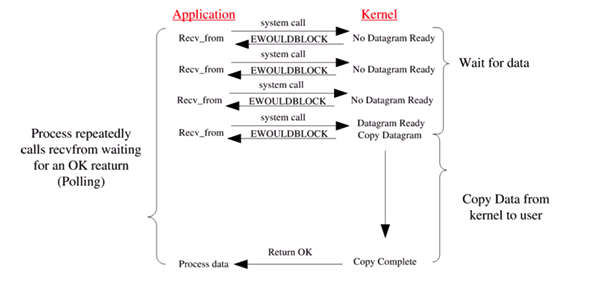
因為資料會先複製到 kernel buffer 裡面,然後再複製到 user space,當對一個資料進行 read,會經歷兩個階段:


  1. waiting for data to be ready
  2. copying the data from the kernel to the process

因為兩階段的 IO,linux 產生了五種 IO model


  1. blocking IO
  2. nonblocking IO
  3. IO multiplexing
  4. signal driven IO (不常用)
  5. asynchronous IO

blocking IO


linux 預設大部分的 socket 都是使用 blocking IO,當 process 呼叫 recv_from,會進入 wait for data 階段,在這個階段的 process 會進入 blocking 狀態,直到 kernel 將資料複製到 user space,該 process 才會解除 blocking 狀態,重新運作。


blocking IO 就是兩個階段的 IO 都被 block


nonblocking IO


當 process 呼叫 recv_from 如果 kernel 還沒將資料準備好,他不會 block process,而是產生 error,直到 kernel 將資料準備好,就會複製到 user space,並完成該讀取的工作。


nonblocking 需要 process 不斷向 kernel 詢問,資料是否 ready。


IO multiplexing


這就是常見的 select, poll, epoll,也稱為 event driven IO。這個方式可讓單一 porcess 就可以處理多個 IO,他會不斷地 polling 多個 socket,當某個 socket 有收到資料,就會主動callback 通知 process。


如果是 select,當 process 呼叫了 select,該 process 就會被 block,同時 kernel 會監控所有 select 處理的 sockets,如果有資料,select 就會 return,然後再由 process 呼叫 read,將資料由 kernel 複製到 user space。


這個方法類似 blocking IO,但進行了兩個 system call (select 及 recv_from),但 select 可處理多個 sockets。


select/epoll 的優點是可以處理多個 sockets,而不是效能。一般在 IO multiplexing 中,socket 都是設定為 non-blocking 的,process 是在 select 被 block 而不是 recv_from。


signal driven


先通知 kernel 如果某個 socket 有資料時,就以 signal 通知 process,process 在第二個步驟,才會被 block。


asynchronous


當 process 進行 read,就可以處理別的事情,當 kernel 收到非同步 read,就會馬上 return,直到將資料複製到 user space,完成後,才會發送 signal 給 process,通知已經完成了 read。


Comparison


  • non-blocking 跟 asynchronous 是不同的

  • synchronous 跟 asynchronous 的差異是 IO operation 會不會 blocking process,因此前面四種 model 都屬於 synchronous IO

  • nonblocking IO 中,在複製資料到 user space 的步驟,還是會有 blocking 的狀態


IO Multiplexing: select, poll, epoll


IO Multiplexing 可讓單一 process 監視多個 fd,當某個 fd 有資料,就可通知 process 進行 IO 操作,select, poll, epoll 都是同步 IO,都需要自己進行讀寫,在讀寫的過程中,process 都是被 blocked。


  • select

int select (int n, fd_set *readfds, fd_set *writefds, fd_set *exceptfds, struct timeval *timeout);

select 可監視 writefd, readfd, 及 exceptfd。呼叫 select 後,該 process 會被 blocked,直到某個 fd ready 或是 timeout。當 select return 後,必須要 traverse 所有 fdset,來找到 ready 的 fd。


select 在所有平台都支援,缺點是監視的 fd 有數量上限,通常是 1024,但可修改 macro 或是重新編譯 kernel 增加這個上限。


  • poll

int poll (struct pollfd *fds, unsigned int nfds, int timeout);

struct pollfd {
    int fd; /* file descriptor */
    short events; /* requested events to watch */
    short revents; /* returned events witnessed */
};

poll 使用一個 pollfd pointer 表示 fd,該 pollfd 包含要監視的 event及發生的 event,pollfd 沒有數量上限。poll return 後,必須 traverse pollfd,找到 ready 的 fd。


  • epoll

這是在 linux kernel 2.6 以後提供的,epoll 將跟 process 有關的 fd 事件,存放在 event table 裡面。


// size 為監視的 fd 數量
int epoll_create(int size);
int epoll_ctl(int epfd, int op, int fd, struct epoll_event *event);
int epoll_wait(int epfd, struct epoll_event * events, int maxevents, int timeout);

  1. int epoll_create(int size);


    當產生了 epoll 後,會佔用一個 fd value,不同於 select 必須提供最大監視 fd 數量 +1,size 並不是該 epoll 能監視的 fd 數量上限,而是配置 kernel 內部資料的建議參數。

  2. int epoll_ctl(int epfd, int op, int fd, struct epoll_event *event);


    • epfd: 是 epoll_create 的 return value
    • op: 有三個 macro 表示 operation: EPOLLCTLADD, EPOLLCTLDEL, EPOLLCTLMOD,分別是新增、刪除、修改 fd 監視的 events
    • fd: 需要監視的 fd
    • epoll_event: 告訴 kernel 要監視什麼 event

    struct epoll_event {
      __uint32_t events;  /* Epoll events */
      epoll_data_t data;  /* User data variable */
    };
    
    //events 是以下幾個 macro 的集合:
    EPOLLIN:表示對應的文件描述符可以讀(包括對端SOCKET正常關閉)
    EPOLLOUT:表示對應的文件描述符可以寫
    EPOLLPRI:表示對應的文件描述符有緊急的資料可讀(這裡應該表示有外部資料到來)
    EPOLLERR:表示對應的文件描述符發生錯誤
    EPOLLHUP:表示對應的文件描述符被掛斷
    EPOLLET: 將EPOLL設為 Edge Triggered 模式,這是相對於水平觸發(Level Triggered)來說的
    EPOLLONESHOT:只監聽一次事件,當監聽完這次事件之後,如果還需要繼續監聽這個socket的話,需要再次把這個socket加入到EPOLL隊列
  3. int epoll_wait(int epfd, struct epoll_event * events, int maxevents, int timeout);


    等待 epfd 的 IO event,最多回傳 maxevents 個 events,events 是事件的集合,maxevents 不能超過 epoll_create 的size


    timeout 為 0 表示要馬上 return,如果回傳的事件數量為 0 表示發生了 timeout


epoll 對 fd 的操作有兩種模式: LT (Level Trigger) 及 ET (Edge Trigger)


  • LT: 當 epollwait 偵測到 fd 事件發生,將該事件通知 process,該 process 可不立刻處理該 event,當下次呼叫 epollwait 時,會再次通知 process 這個事件


    同時支援 blocking 與 non-blocking socket,可對該 ready 的 fd 進行 IO,如果不做,kernel 會持續通知 ready

  • ET: 當 epollwait 偵測到 fd 事件發生,將該事件通知 process,該 process 必須立刻處理該 event,如果沒有處理,當下次呼叫 epollwait 時,不會再次通知 process 這個事件


    這是高速運作方式,只支援 non-blocking socket


在 select/poll 中,process 必須呼叫某些 function,kernel 才會對該 fd 進行監視,而 epoll 事先利用 epollctl 註冊 fd,當某個 fd ready 後,會透過 callback 機制,啟動這個 fd,當 process 呼叫 epollwait 就可得到通知。


因為 epoll 去掉了 traverse fds 的步驟,因此可以快速處理 IO event。


epoll 監視的 fd 數量沒有限制,通常是可以打開的文件的數量,可查詢 cat /proce/sys/fs/file-max 得知。select 的缺點,是該 process 可打開的 fd 有數量上限。


如果沒有大量的 idle/dead connection,epoll 的效率不會比 select/poll 高很多。


References


Linux IO模式及 select、poll、epoll詳解


select、poll、epoll之間的區別總結


select,poll,epoll優缺點及比較


關於epoll和select的區別,哪些說法是正確的?


Select、Poll與Epoll比較


Linux 開發,使用多線程還是用 IO 復用 select/epoll?


Socket IO model of humor on the Linux